Showing posts with label Tips and Tricks. Show all posts

Wednesday, April 9, 2014

Extracting the specific content line from huge log file using PowerShell command

Sometimes it will so be difficult to search a line which it has the specific word or content using Ctrl+F in the huge log file. Found out a easiest way that will very much useful for our daily task
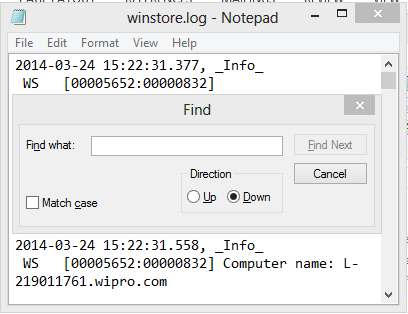
  Winstore

For Example: I want to search the line which hold the word “Build” in the text file winstore.log.

PS C:\Temp> dir .\Winstore.LOG | Select-String "Build"

Powershell

If you want to search in multiple file

PS C:\Temp> dir .\Winsto*.LOG | Select-String "Build"

If you want to export the output to text file

PS C:\Temp> dir .\Winsto*.LOG | Select-String "Build" > Output.txt

Select-String Powershell

Note: You can’t get output if you used Export-CSV cmdlet & this search can be done only notepad format files

Thursday, January 16, 2014

User Experience With Outlook 2013 and Outlook Web App 2013

User Experience With Outlook 2013 and Outlook Web App 2013

Common user experience present in both Outlook and Outlook Web App 2013
  1. Conversation Actions & View
  2. Modification of server side junk email allow/block list
  3. Modification of server side inbox rules
  4. Management of memberships of Exchange Distribution Groups
  5. Set external/internal message and from/to date range
  6. Integration to allow access to remote calendar, share local calendar
  7. Combine Multiple Calendars in One View
  8. Fast searching using pre-built search index
  9. Integrated E-Mail Archive
  10. View of MailTips
  11. GAL Photos and UM Name along with availability
  12. Allows viewing of compatible attachments without leaving Outlook
  13. Policy Management Set and view retention policy for folders
  14. Message preview shown to the right of messages
  15. Stored Nicknames on the server
  16. Real time calendar view for meeting and room bookings
  17. AD Rights Management Services
Additional User Experience Features Outlook have where Outlook Web apps doesn't get user experience
  1. Export and Import of Contacts
  2. Export and Import to PST
  3. Ability to add Macros
  4. Resend the email message
  5. Ability to reply to embedded email messages
  6. Calendar Preview in Meeting Requests
  7. Expanding distribution groups to see all members
  8. Adding multiple Exchange account accross different server and domain
  9. Ability to moderate distribution list
  10. Subscribe to RSS feeds
  11. Reading pane at the bottom of the window

Outlook Web App 2013 - Light Version.

Outlook Web App 2013 - Light Version.

Outlook Web App 2013 light version can support lower version browser and can connect at low bandwidth also.

To enable light version for Exchange server 2013 Outlook Web App.

From Server End execute the following powershell to get applied for end users

Set-OWAMailboxPolicy -Identity "Light OWA Users" -PremiumClientEnabled $False

Set-CASMailbox -Identity "[UserName]" -OWAMailboxPolicy "Light OWA Users".

End user can also able to apply Exchange server 2013 Outlook Web App.by themselves

To change Outlook Web App 2013 into Light version - Log-in to Outlook Web Apps - Click on "Display Setting"  (right side top corner) - Select Outlook Web App Version

The following list of features will not be available with light version on comparing them with premium version of Outlook Web App 2013


  1. Spelling checker, Reading pane, Conversation view
  2. Notifications, Reminders & Weekly calendar views
  3. Right-click menu & Drag-and-drop
  4. Resource mailbox management
  5. Voice mail options
  6. Favorites
  7. OCS integration
  8. Public folders
  9. Share a calendar, Open a shared calendar, Monthly calendar views
  10. Retention Policies
  11. Users can create and edit personal distribution lists & server-side rules
  12. RMS protection
  13. RBAC - Change user settings & Administrator settings
  14. Web-ready document viewing
  15. Nickname cache
  16. Message tracking
  17. Advanced search
  18. MailTips
  19. Exchange control panel
  20. Attach message to a message


Saturday, August 15, 2009

How to view system uptime in Microsoft

To view the amount of time that PC has been running with out rebooting or restarting the computer:

1) Open the Command Prompt (located under Accessories)
2) Type systeminfo
3) Once the system has finished gathering the information, scroll up and the time is displayed in the System Up Time field.

As you can see, running systeminfo also gives a lot of useful information.

Thursday, August 13, 2009

Change information and images in System properties in MIcrosoft


Please run notepad and paste this text:

[General]

Manufacturer="You can display useful information here"Model="You can display useful information here"

[Support Information]

Line1="You can display useful information here"

Line2="You can display useful information here"

Line3="You can display useful information here"

Line4="You can display useful information here

"Line5="You can display useful information here"

Line6="You can display useful information here"

Line7="You can display useful information here"

Line8="You can display useful information here"

Line9="You can display useful information here"

Line10="You can display useful information here"

Save it as oeminfo.ini in C:\WINDOWS\System 32. You can also create a bitmap file and name it as oemlogo.bmp, save it in C:\WINDOWS\System 32. Now, try to hold down Win key while pressing Pause/break. You'll notice that the text and image you created will appear in your System properties. I hope u enjoy it!

The blog is written to the share the knowledge mainly on Microsoft Exchange Server and other Microsoft product that experienced on day-to-day life.